
Introduction
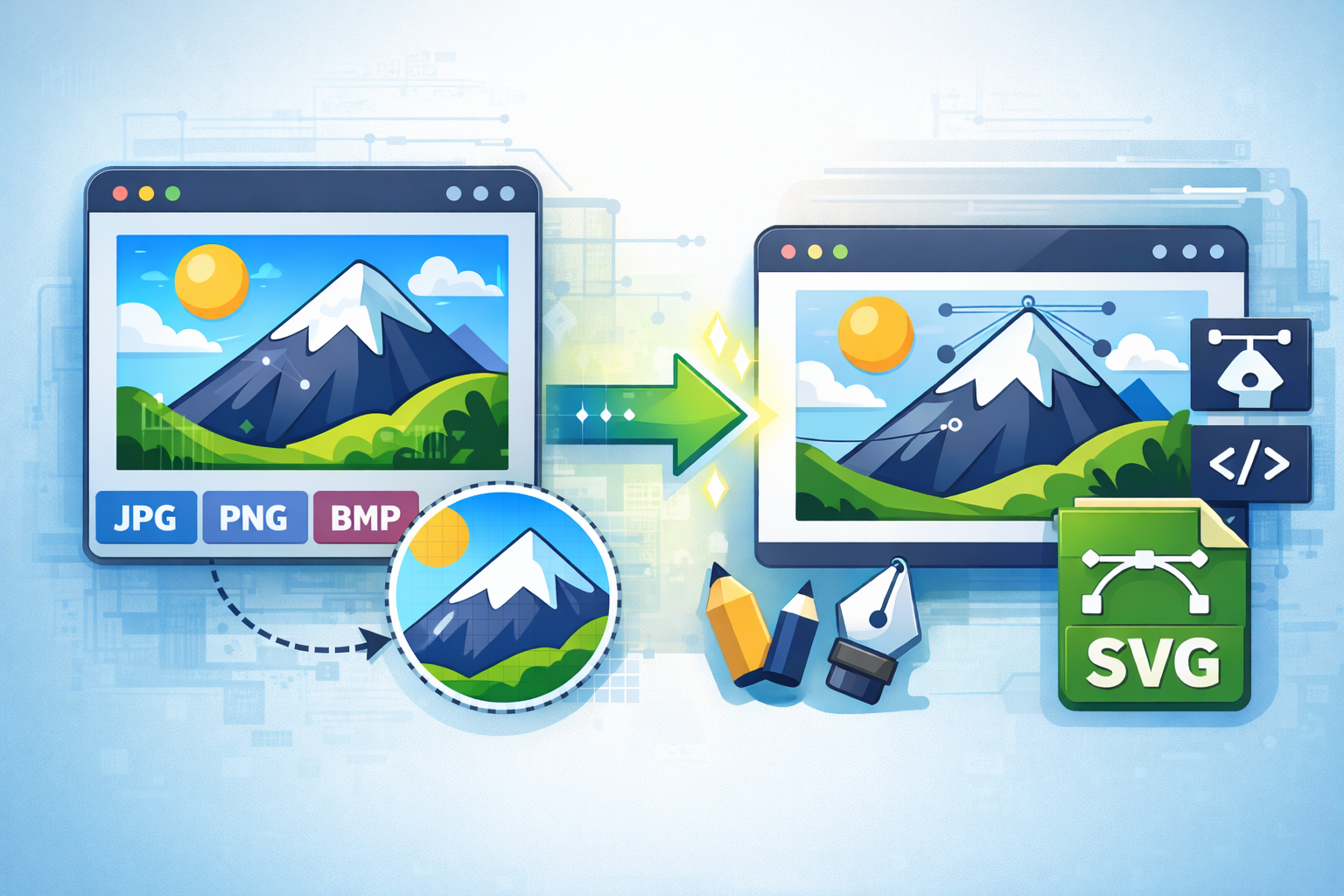
In the modern world of digital technology images play a significant role on websites, social media, e-commerce as well as personal projects. Yet, many are struggling to change pictures from one format into another, because the images often lose clarity and sharpness. It also loses the level of detail.
If you’ve ever attempted to convert the image from JPG to PNG or changed the size of an image only to have blurred results, you’re certainly not the only one. The positive side is that you can learn how to convert images without reducing the quality is much easier than people believe.
The trick is to understand the various formats for images, their compression methods and the appropriate tools to utilize. If done properly it is possible to convert photos with the same resolution while maintaining quality of color and precise details.
This guide will guide readers through the entire information you should be aware of, from the best formats for images and conversion tools to the most sophisticated techniques to ensure that the image is of high quality.
Understanding Image Quality Before Conversion
Before converting images it’s crucial to know the factors that determine image quality.
Image quality is influenced by a variety of technical aspects:
Resolution
Resolution refers the number of pixels that an image has. Higher resolutions mean more clarity and detail.
Example:
- 1920 1080×1080 = High resolution
- 800 x 600 = Lower resolution
The reduction in resolution of conversion reduces the quality.
Compression Type
Images employ two primary kinds of compression techniques:
Lossy Compression
- Removes certain image information
- Smaller file size
- Quality loss of a small amount
Example: JPG
Lossless Compression
- All image data is kept secure.
- Larger file size
- No quality loss
Examples: PNG, TIFF
Color Depth
Color depth determines the amount of colors an image will display. Changes to the color depth may cause color banding as well as loss of quality.
Knowing these basic concepts can help to avoid quality reductions in photo conversion.
Common Image Formats and Their Quality Impact
Different formats impact the way your image is displayed and stored.
| Format | Compression Type | Best Use |
|---|---|---|
| JPG / JPEG | Lossy | Photography & web |
| PNG | Lossless | Graphics and transparency |
| TIFF | Lossless | Professional photography |
| WebP | Lossy/Lossless | Modern web images |
| BMP | Uncompressed | Editing & raw storage |
If preserving image quality is the goal, then changing from the lossless format is the best choice.
Best Methods for How to Convert Photos Without Reducing Quality
Now let’s examine the most effective techniques professionals employ when it comes to converting images while maintaining quality.
1. Use Lossless Image Formats
One of the most simple methods to keep the image quality unaltered is by converting images in format that is lossless.
Formats that are recommended include:
- PNG
- TIFF
- BMP
- (for photographers) RAW (for photographers)
As an example, the conversion of JPG to PNG will preserve the quality of existing images however it will not restore information that has been lost through JPG compression.
2. Maintain Original Resolution
Resolution must remain constant when converting.
Avoid:
- Images downscaling
- Reducing DPI
- Intentionally or not, we are cropping
Professional tools let you fix the resolution and ensure that the image remains in the original dimensions.
3. Disable Automatic Compression
A lot of online software automatically compresses images in order to reduce the size of files.
Before you convert, make sure to check the settings to find options such as:
- Compression level
- Image optimization
- Reduction in size of the file
Adjust compression to at 0% or to the lossless option.
4. Use Professional Image Editing Software
Professional software gives you much more control over settings for quality.
Some of the most popular tools are:
| Tool | Best For |
|---|---|
| Photoshop | Professional editing |
| GIMP | Editing images for free. |
| Lightroom | The workflow of photography |
| Affinity Photo | Advanced editing |
These tools let you export images using high-quality settings.
5. Convert Images in Batch Without Re-Saving Multiple Times
The repeated opening and saving of images can slowly degrade quality.
Instead:
- Convert images once
- Make use of tools to convert batches
- Avoid multiple re-exports
Batch tools guarantee consistency across multiple documents.
6. Use Trusted Online Conversion Tools
When you are looking for online-based tools, select reliable platforms that allow the lossless process of conversion.
Examples include:
- CloudConvert
- Convertio
- ILoveIMG
- ImageMagick (advanced Users)
It is possible to find trusted tools for conversion here:
https://cloudconvert.com
Always verify that the website has quality output options that are high-quality..
7. Work With RAW Files When Possible
Photographers usually utilize RAW files as they hold the entire data captured by the camera’s sensor.
Advantages:
- The greatest editing flexibility
- No compression loss
- The best place to start for conversion
RAW files can be later converted to JPG, PNG, or TIFF without losing the original information.
Step-by-Step Guide: Convert Photos Without Losing Quality
Follow this easy process to convert your photos in a safe manner.
Step 1: Choose the Right Format
Choose whether the output will be JPG TIFF, PNG or WebP.
Step 2: Open the Image in a Reliable Tool
Utilize professional software or a reputable online converter.
Step 3: Check Image Resolution
Be sure width and height are the same.
Step 4: Set Compression to Lossless
Enable the quality-reduction settings.
Step 5: Export or Convert
Make sure to save the photo in the format of your choice.
Step 6: Verify Image Quality
Zoom in and confirm that the image is clear and sharp.
Best Free Tools for High-Quality Image Conversion
and building healthy habits are a few tools that are free and frequently used to keep images in good quality.
| Tool | Platform | Features |
|---|---|---|
| GIMP | Windows/Mac/Linux | Advanced editing |
| ImageMagick | Cross-platform | Batch conversion |
| IrfanView | Windows | Lightweight and fast |
| XnConvert | Multi-platform | Bulk conversions |
| Paint.NET | Windows | Simple editing |
These tools offer you complete control over output and compression settings.
Common Mistakes That Reduce Image Quality
Many people do not realize that they have damaged their images during the process of conversion.
and building healthy habits is a list of the top frequently made mistakes to beware of.
Repeated Saving
The saving of the same JPG multiple times decreases quality with each save.
Using Low-Quality Online Tools
Some websites compress images very heavily.
Changing Resolution
Reducing pixel dimensions lowers image detail.
Over-Compression
High compression settings remove important image data.
Converting to the Wrong Format
For instance, changing PNG images to JPG could reduce the clarity of images.
It is crucial to avoid these mistakes when you are learning how to convert photos Without affecting quality.
Advanced Tips for Professional Results
For conversions that are professional, follow these professional tips.
Use 16-Bit Color When Editing
A higher bit depth ensures more smooth color transitions.
Keep an Original Backup
Always preserve the original image.
Export at Maximum Quality
When exporting JPG Set the quality to 90-100 percent.
Avoid Unnecessary Resizing
Resize images only if needed to fit specific platforms.
Use Non-Destructive Editing
Tools such as Lightroom allow editing without permanent altering the original file.
How Image Conversion Affects Website Performance
While high-quality images look fantastic however, huge files can be slow for websites.
Balance is essential.
Formats for web pages that are recommended:
| Format | Use Case |
|---|---|
| WebP | Top for web sites |
| JPG | Photographs |
| PNG | Graphics that have transparency |
Modern formats such as WebP allows for quality to be maintained while reducing the size of files.
FAQs About How to Convert Photos Without Reducing Quality
1. Can you change images without affecting quality?
Yes. If you are using lossless formats and you disable compression images, they can be converted with no noticeable quality loss.
2. Which image format is of the highest quality?
TIFF and PNG offer the highest quality due to their lossless compression.
3. Does converting JPG to PNG improve quality?
No. It stops further loss of quality but it is unable to restore data lost through JPG compression.
4. What is the most effective tool to convert photos?
Professional tools such as Photoshop, GIMP, and ImageMagick provide the most control of image quality.
5. Why are my images becoming unreadable after conversion?
This can be because of compression, resolution adjustments or a repeatedly saving.
6. Can online converters reduce image quality?
Yes. Some software will automatically compress images therefore, always verify the quality settings before you convert.
Conclusion
Knowing how to convert images without compromising quality is crucial for designers, photographers bloggers, photographers, and everyone else who works using digital images.
The fundamental principles are easy to grasp:
- Make use of Lossless Formats
- Keep the the original resolution
- Delete the automatic compression
- Utilize high-quality tools
- Beware of repetition of conversions
Following the methods described in this article You can convert images without risk and preserve the sharpness, accuracy of color and the fine details.
Quality photos don’t just appear more professional, but they enhance the user experience on social media, websites as well as digital projects.
If you mix the best tools with the right conversion techniques making sure that image quality is maintained becomes easy.